 Arix
ArixBuild Your Own Pterodactyl Theme
Learn how to create your own Pterodactyl theme from scratch. This guide walks you through customizing the Pterodactyl panel.
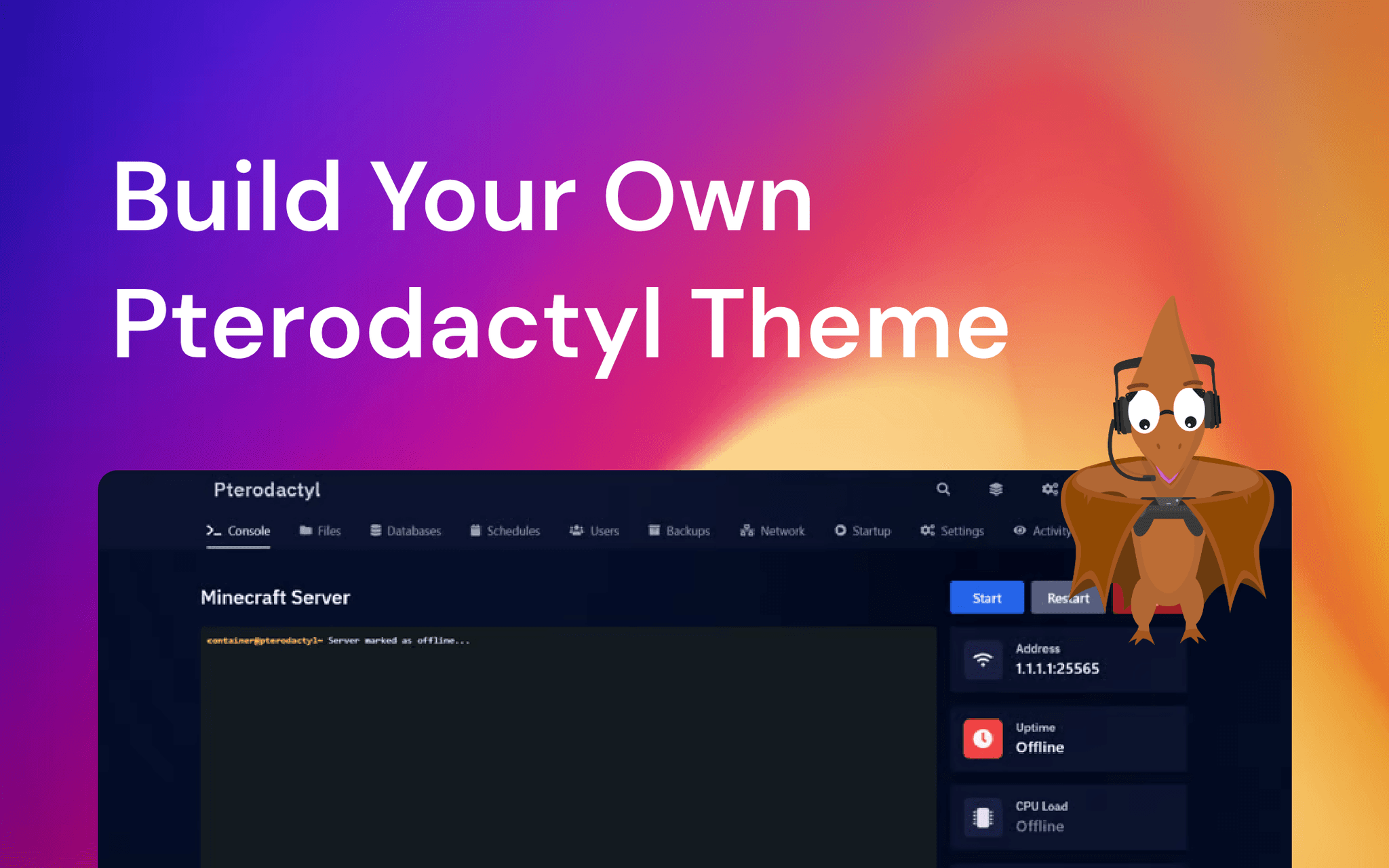
Creating your own Pterodactyl theme is one of the best ways to make your panel stand out and match your personal or business branding. Whether you want a sleek dark mode, a colorful gaming-inspired interface, or something minimal and clean, customizing themes in Pterodactyl gives you full control over how your panel looks and feels.
With over four years of experience building Pterodactyl themes, we have put together one of the most accessible guides to help you create your own.
Quick overview:
To create a custom Pterodactyl theme, you mainly work inside the React frontend located in /resources/scripts, adjust styles using Tailwind CSS, and rebuild the panel using Yarn. Most visual changes are done through components and the tailwind.config.js file.
In this guide, you will learn:
- Where Pterodactyl theme files are located
- How the panel is structured (Laravel + React)
- How to change colors using Tailwind CSS
- How to change the logo of Pterodactyl
- How to rebuild and test your theme
- Some pro-tips
Understanding Pterodactyl’s Structure
Before you start customizing, it is important to understand how Pterodactyl is structured. The Pterodactyl panel is built using a combination of multiple frameworks that work together to deliver both functionality and design.
Laravel is the backend framework that powers Pterodactyl. It is a PHP-based framework responsible for handling all server-side logic, including user management, server control, and API communication. Whenever you interact with the Pterodactyl API, you are directly communicating with Laravel. It acts as the core system that processes data and ensures everything runs smoothly behind the scenes.
React is used for the frontend, which is everything you actually see and interact with in the panel. It is a JavaScript library designed for building user interfaces through reusable components. Inside Pterodactyl, React is embedded within Laravel and is responsible for rendering pages such as the dashboard, server console, and account settings. The version used in Pterodactyl is somewhat outdated, which is important to keep in mind when working with newer libraries or techniques. Styling in the panel is handled using Tailwind CSS, a utility-first framework that allows you to style elements using predefined class names directly in your components.
Where to Start Theming
Most of your theme customization will happen inside the frontend source files. These are located in:
/resources/scripts
This is where most of your theming work will take place. Within this directory, there are a few key folders that are especially important when creating or modifying a Pterodactyl theme.
The components folder located at /resources/scripts/components contains all the building blocks of the interface. This includes full pages such as the console or account page, as well as smaller reusable elements. If you want to change how a specific page looks or behaves, this is where you will make those changes. Unlike many modern projects that rely on external UI libraries, Pterodactyl includes its own internal set of UI components. These can be found in the elements subfolder, where you will see inputs, buttons, modals, and other commonly used interface parts. This structure makes it much easier to apply consistent styling across your theme.
The routers folder located at /resources/scripts/routers handles the frontend routing of the panel. Inside the routes.ts file, you can manage how URLs are mapped to pages. If you want to add, remove, or modify a page route, this is where you do it. For larger structural changes, such as adjusting the layout of the dashboard or server view, you will be working with files like DashboardContainer.tsx or ServerContainer.tsx.
Install dependencies
Before you can start building or applying your theme, you need to install the required dependencies.
Pterodactyl uses:
- Node.js for the frontend build process
- Yarn as the package manager
To install Node.js on Ubuntu or Debian, run the following commands:
curl -sL https://deb.nodesource.com/setup_22.x | sudo -E bash -
sudo apt install -y nodejs
For CentOS or similar distributions, use:
curl -sL https://rpm.nodesource.com/setup_22.x | sudo -E bash -
sudo yum install -y nodejs yarn
sudo dnf install -y nodejs yarn
Once Node.js is installed, you can install Yarn globally and fetch the required project dependencies:
npm i -g yarn

cd /var/www/pterodactyl
yarn
After installing everything, you can build the panel assets for production:
cd /var/www/pterodactyl
yarn build:production
If you prefer to work in a development environment with live updates while editing your theme, you can run:
cd /var/www/pterodactyl
yarn serve
At this point, your environment is fully set up and ready for theme development. From here, you can start modifying styles, adjusting components, and shaping the panel into your own custom Pterodactyl theme.
How to Change Colors in Your Pterodactyl Theme (Step-by-Step)
The first step in creating your own Pterodactyl theme is changing the color scheme. As mentioned earlier, Pterodactyl uses Tailwind CSS v2 for styling. One of the biggest advantages of Tailwind is how easy it is to make major visual changes by simply adjusting the configuration file. With just a few edits, you can completely transform the look of your panel.
By default, Pterodactyl mainly relies on two color groups: a neutral gray palette and a primary accent color, which is usually blue. Replacing these two color sets already makes a huge difference and instantly gives your panel a more unique identity.
To generate your own color palette, you can use a tool like https://coolors.co/tailwind. This tool allows you to create a full Tailwind-compatible color scale based on a single base color. For this example, we are going for a purple-themed panel.
Start by setting your primary base color to #BB00FF. From there, adjust the saturation and temperature slightly to create a softer and more balanced tone. In this case, that results in a secondary tone like #7E629C. Once you are happy with your palette, export it using the Tailwind v3 format.
The exported file will include a full color scale, but you only need the numeric values. It should look like this:
"50": "#f2eff5",
"100": "#e5e0eb",
"200": "#ccc0d8",
"300": "#b2a1c4",
"400": "#9882b0",
"500": "#7f629d",
"600": "#654f7d",
"700": "#4c3b5e",
"800": "#33273f",
"900": "#19141f",
"950": "#120e16"
Next, open your tailwind.config.js file inside the Pterodactyl panel directory. This is where all global styling variables are defined. You will see existing color definitions for gray and primary. Replace the primary color object with your newly generated palette.
Your configuration should look like this:
const colors = require('tailwindcss/colors');

const gray = {
    "50": "#f2eff5",
    "100": "#e5e0eb",
    "200": "#ccc0d8",
    "300": "#b2a1c4",
    "400": "#9882b0",
    "500": "#7f629d",
    "600": "#654f7d",
    "700": "#4c3b5e",
    "800": "#33273f",
    "900": "#19141f",
    "950": "#120e16"
};

const primary = {
    "50": "#f8e5ff",
    "100": "#f1ccff",
    "200": "#e499ff",
    "300": "#d666ff",
    "400": "#c933ff",
    "500": "#bb00ff",
    "600": "#9600cc",
    "700": "#700099",
    "800": "#4b0066",
    "900": "#250033",
    "950": "#1a0024"
};

module.exports = {
    content: [
        './resources/scripts/**/*.{js,ts,tsx}',
    ],
    theme: {
        extend: {
            fontFamily: {
                header: ['"IBM Plex Sans"', '"Roboto"', 'system-ui', 'sans-serif'],
            },
            colors: {
                black: '#131a20',
                primary: primary,
                gray: gray,
                neutral: gray,
                cyan: colors.cyan,
            },
            fontSize: {
                '2xs': '0.625rem',
            },
            transitionDuration: {
                250: '250ms',
            },
            borderColor: theme => ({
                default: theme('colors.neutral.400', 'currentColor'),
            }),
        },
    },
    plugins: [
        require('@tailwindcss/line-clamp'),
        require('@tailwindcss/forms')({
            strategy: 'class',
        }),
    ]
};
Once you have applied your changes, rebuild the panel so the new styles take effect:
yarn build:production
After the build process is complete, refresh your panel and you will immediately see your new Pterodactyl theme in action.
How to change the Pterodactyl logo (Step-by-Step)
In this section, you will replace the Pterodactyl logo in multiple places:
- Favicon
- Login page
- Navigation bar
Let's begin with the favicon. Navigate to:
/public/favicons/. And upload here a favicon.ico, favicon-32x32.png and favicon-16x16.png. When done after the cache stops this should instantly appear.
To set the logo on the homepage navigate to /public/assets and upload your logo. Make sure to remember the actual name, for example logo.png.
Now navigate to /resources/scripts/components/auth/LoginFormContainer.tsx and replace /assets/svgs/pterodactyl.svg on line 38 with your logo URL.
For example:
/assets/logo.png
The /public can be ignored when using it in the code.
Now let's set the logo in the navigation bar. Navigate to:
/resources/scripts/components/NavigationBar.tsx
And replace this code:
<Link
    to={'/'}
    className={
        'text-2xl font-header font-medium px-4 no-underline text-neutral-200 hover:text-neutral-100 transition-colors duration-150'
    }
>
    {name}
</Link>
With:
<Link
    to={'/'}
    className={
        'text-2xl font-header font-medium px-4 no-underline text-neutral-200 hover:text-neutral-100 transition-colors duration-150 flex items-center gap-x-2'
    }
>
    <img src={'/assets/logo.png'} css={tw`w-5`} />
    {name}
</Link>
Make sure to set the correct image URL.
After updating everything run:
cd /var/www/pterodactyl
yarn build:production
Take Your Pterodactyl Theme to the Next Level
After changing the colors and adding your logo, your Pterodactyl theme already starts to feel more personal. But if you want to push things further, there is a lot more you can customize beyond just basic branding.
A good next step is working on the core UI components. Elements like buttons play a big role in how your panel feels since they are used everywhere. Pterodactyl uses multiple button components, so it is important to update each one to keep your design consistent. The same goes for input fields. Adjusting things like border radius, spacing, font size, and focus states can make the interface feel much cleaner and more refined.
You can also improve the overall layout by tweaking spacing, card designs, shadows, and hover effects. These details might seem small, but they have a big impact on how modern and smooth your panel feels. Even subtle changes can make your Pterodactyl theme stand out compared to the default design.
If you want to go deeper, you can start customizing full pages. The console page is a great place to begin since it is one of the most used parts of the panel. You can improve readability, adjust the layout, or restyle surrounding elements to better match your theme. The dashboard and server overview pages are also worth updating if you want a more unique and consistent interface across the entire panel.
As you continue, it is important to keep everything consistent. Instead of making random changes in different places, try to follow a clear style across your theme. Using the same spacing, colors, and component styles throughout the panel will make everything feel more polished and intentional.
Testing is just as important as designing. Always check your changes on different screen sizes and make sure everything still works as expected. During development, running yarn serve helps a lot since you can instantly see the results of your changes without rebuilding every time.
Conclusion
Creating your own Pterodactyl theme gives you full control over how your panel looks and feels. Once you understand how the panel is structured, where the frontend lives, and how Tailwind CSS handles styling, you can safely make changes without breaking anything.
Starting with simple adjustments like colors and logos already makes a noticeable difference. From there, you can move into deeper customization by editing components, improving layouts, and redesigning entire pages.
The most important part is to take it step by step. Make small changes, test them, and keep building on your theme over time. As you gain more experience, your Pterodactyl theme will not only look better but also feel more polished and professional.
With the right approach, you can turn the default Pterodactyl panel into something that truly reflects your own style or brand.
More blogs
Updated 10/26/2025
The best online marketplace for Pterodactyl addons & themes.
Tired of searching endlessly for Pterodactyl addons and themes with limited choices and uncertain quality? You're not alone. Many server admins struggle to find reliable resources to enhance their Pterodactyl servers. But fret not, we're here to make things easier.
Updated 11/23/2025
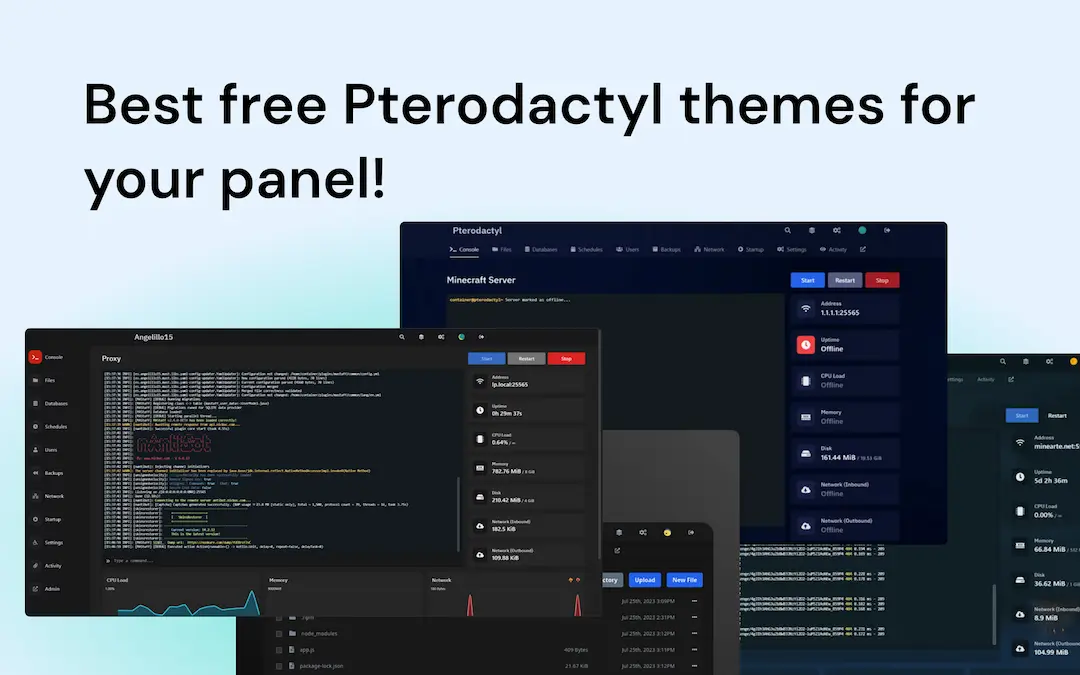
4 Free Pterodactyl Themes to personalize your Pterodactyl experience!
Explore 4 free Pterodactyl themes to personalize your panel with modern designs, improved usability, and easy setup. Refresh your Pterodactyl experience today!
Updated 11/26/2025
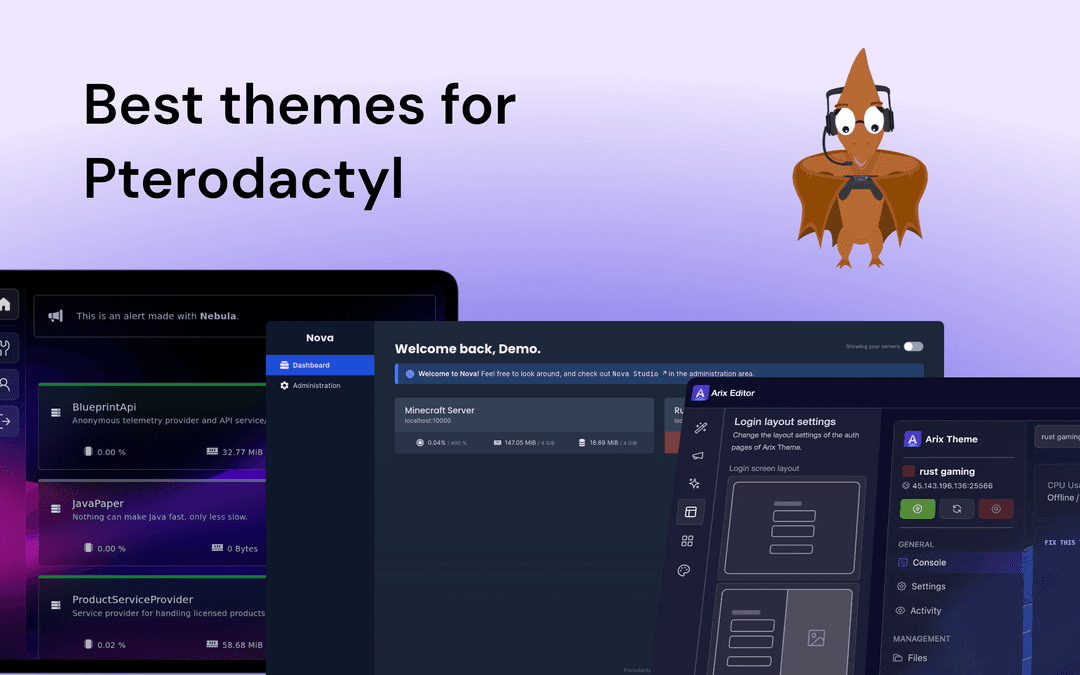
4 Best Pterodactyl Themes
We made a list of the 4 best pterodactyl themes on the market. Enhance your Pterodactyl experience with Pterodactyl Themes.